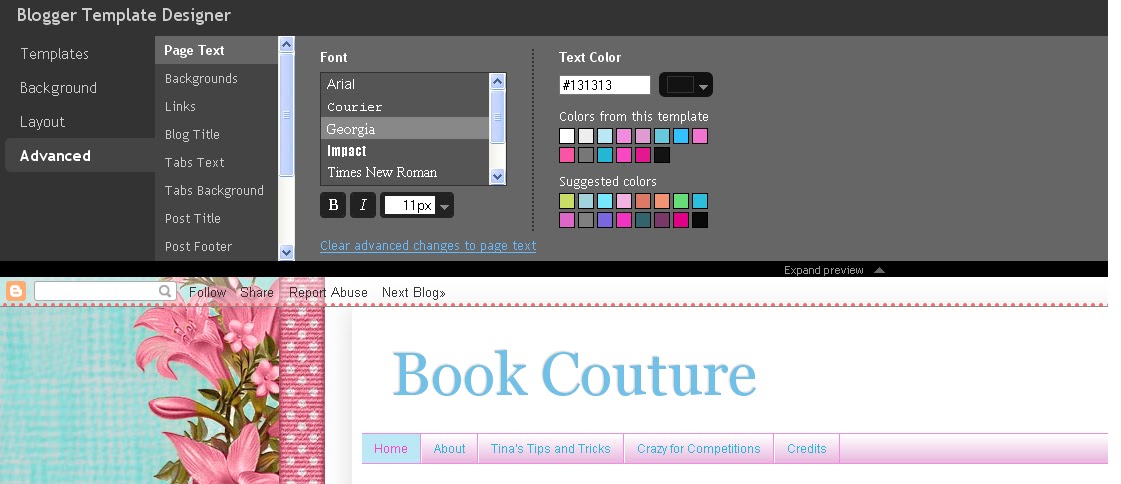
e.g. If you click on the link to "About Tina" on my menu bar above, you'll see that it leads to this site:
http://bookcouture.blogspot.com/p/about.html
Notice that there is a "p" there? This indicates that "About" is a Page on my blog.
But what if I want to link to a site that isn't a page? For example, the Book Contest Directory?
Click on the "International" link under my menu bar. Notice that the external website opens up in a new tab or window. This is what this tutorial will teach you to do for your blog.
Step 1:
Go to your blog Dashboard, and access the page Design, and the subtab Edit HTML.Remember to backup your blog template by Downloading Full Template and saving it somewhere easily accessible.

Step 2:
Check the box Expand Widget Templates.Using CTRL + F, search for <b:widget id='PageList1'.
You will then see code that looks something like this. Under <b:loop>, add the code in bold.
The parts you need to change are highlighted in red. Where it says URL, replace it with your link. Where it says Link Name, replace it with the name of the link you want visible on your menubar.
- - - - - - - - - - - - - - - - - - - - - - - - - - - - - - - - - - - - - - - - -
<b:widget id='PageList1' locked='false' title='Pages' type='PageList'>
<b:includable id='main'>
<b:if cond='data:title'><h2><data:title/></h2></b:if>
<div class='widget-content'>
<ul>
<b:loop values='data:links' var='link'>
<b:if cond='data:link.isCurrentPage'>
<li class='selected'><a expr:href='data:link.href'><data:link.title/></a></li>
<b:else/>
<li><a expr:href='data:link.href'><data:link.title/></a></li>
</b:if>
</b:loop>
<li><a href='URL' target='_blank'>Link Name</a></li>
<b:includable id='main'>
<b:if cond='data:title'><h2><data:title/></h2></b:if>
<div class='widget-content'>
<ul>
<b:loop values='data:links' var='link'>
<b:if cond='data:link.isCurrentPage'>
<li class='selected'><a expr:href='data:link.href'><data:link.title/></a></li>
<b:else/>
<li><a expr:href='data:link.href'><data:link.title/></a></li>
</b:if>
</b:loop>
<li><a href='URL' target='_blank'>Link Name</a></li>
</ul>
<b:include name='quickedit'/>
</div>
</b:includable>
</b:widget>
<b:include name='quickedit'/>
</div>
</b:includable>
</b:widget>
- - - - - - - - - - - - - - - - - - - - - - - - - - - - - - - - - - - - - - - - -
Then click on Save Template and then View Blog to see your external link in your Menu Bar.
You're done! To add more, simply copy that line and repeat it, changing the URL and Link Name when needed.
✂ - - - - - - - - - - - - - - - - - - - - - - - - - - - - - - - - - - -
More Tips & Tricks from Tina: